
Using CFEngine Build command line tools - cfbs
In this tutorial, we’ll take a look at how to work with CFEngine Build projects from the command line.
We assume you have already set up a hub, and installed cf-remote and cfbs as we do in step 1 of the getting started guide.
When working on a CFEngine Build project, the workflow looks like this:
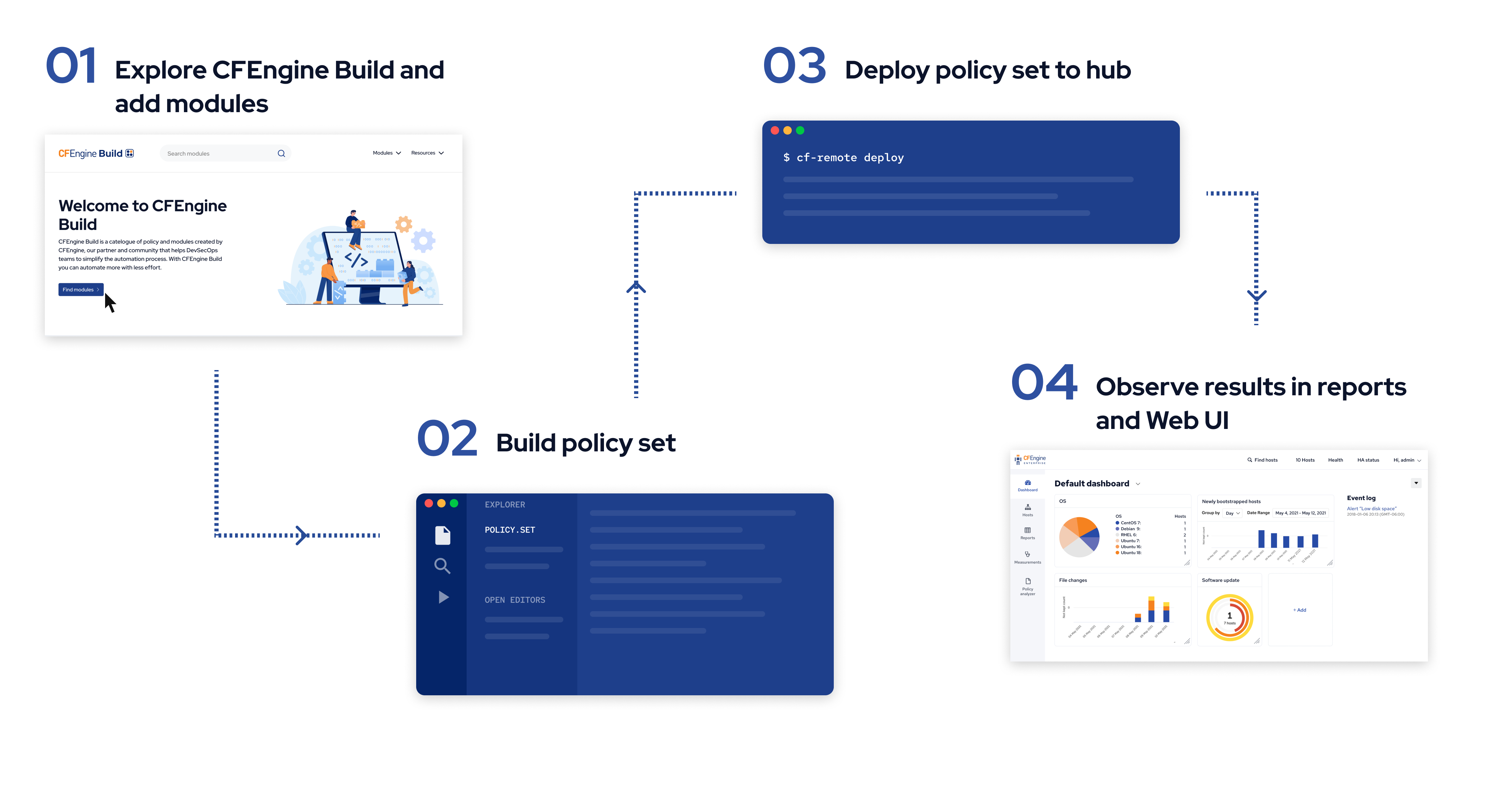
In the getting started guide, we achieved steps 2 and 3 from inside Mission Portal, while in this guide we will do them locally with the command line tools and a text editor.
Step 0: Creating a new project
Create a folder for your project, for example in your home directory:
mkdir -p ~/cfengine_projectInitialize it:
cd ~/cfengine_project && cfbs initWhen you run cfbs init it will prompt you about what to name the project, whether you want to use git, etc.
Other commands which you use to edit a CFEngine Build project, such as cfbs add, cfbs remove, etc. have similar prompts.
Just read the questions/instructions in your terminal, answer as you see fit, and if you are unsure, you can always just press enter to use the default.
For simplicity, we won’t keep mentioning the prompts throughout this tutorial.
Step 1: Explore and add modules
You now have a basic project with exactly 1 module (the default policy set):
cfbs statusName: Example project
Description: Example description
File: cfbs.json
Modules:
001 masterfiles @ 3.27.1 / 15d8ca2ca951db3ddf197b90c9dea6ef75f5fa89 (Not downloaded)To find modules, go to build.cfengine.com and look around.
Adding a module is simple;
cfbs add <module-name>If you removed the masterfiles module, or didn’t add it during the prompts in cfbs init, you would add it by simply running cfbs add masterfiles.
For the purposes of this tutorial, let’s add these modules:
cfbs add every-minutecfbs add inventory-sudoerscfbs add compliance-report-os-is-vendor-supportedEach of these modules provides something useful:
every-minuteincreases our policy evaluation schedule, so it runs every minute, instead of the default 5 minutes.inventory-sudoersadds variables and reporting data for who has sudo access on a host.compliance-report-os-is-vendor-supportedadds a compliance report about OS support to Mission Portal (if running CFEngine Enterprise).
Step 2: Build
Once we are done adding modules, it is time to build them, combining it all into the policy set which will be deployed to our hub:
cfbs buildModules:
001 masterfiles @ 15d8ca2ca951db3ddf197b90c9dea6ef75f5fa89 (Downloaded)
002 every-minute @ 74b6776ca4e120285f9c44e68ccf79eef84accfd (Downloaded)
003 inventory-sudoers @ 7f6be96d4b8e759de3463facbd3144c8b22cdc78 (Downloaded)
004 compliance-report-imports @ 9bd8f0d837905b4ae4104d78af26f274d1a45b5e (Downloaded)
005 compliance-report-os-is-vendor-supported @ 0344b3ba1d9599d01a19f1b673c82980822ac477 (Downloaded)
Steps:
001 masterfiles : run 'EXPLICIT_VERSION=3.27.1 EXPLICIT_RELEASE=1 ./prepare.sh -y'
001 masterfiles : copy './' 'masterfiles/'
002 every-minute : json 'def.json' 'masterfiles/def.json'
003 inventory-sudoers : copy './policy/main.cf' 'masterfiles/services/inventory-sudoers/main.cf'
003 inventory-sudoers : json './cfbs/def.json' 'masterfiles/def.json'
004 compliance-report-imports : copy './compliance-report-imports.cf' 'masterfiles/services/cfbs/modules/compliance-report-imports/compliance-report-imports.cf'
004 compliance-report-imports : policy_files 'services/cfbs/modules/compliance-report-imports/compliance-report-imports.cf'
004 compliance-report-imports : bundles 'default:compliance_report_imports'
005 compliance-report-os-is-vendor-supported : copy './os-is-vendor-supported.json' 'masterfiles/.no-distrib/compliance-report-definitions/os-is-vendor-supported.json'
Generating tarball...
Build complete, ready to deploy 🐿
-> Directory: out/masterfiles
-> Tarball: out/masterfiles.tgz
To install on this machine: sudo cfbs install
To deploy on remote hub(s): cf-remote deployImportantly, we see that our policy was built successfully, from 5 different modules.
The output of the build, the policy set, is available in the out/ directory.
Feel free to look at some of the files in out/masterfiles/, if you want to understand how these modules work.
Step 3: Deploy
Now, let’s deploy what we built to the hub:
cf-remote deployKeep in mind that cf-remote deploy just deploys the policy set once, right now.
If you have already set up your hub to deploy policy from git, this will quickly get overwritten, and you should push your repo to git instead.
Note: This assumes your hub is saved in cf-remote.
We did this in the getting started tutorial, while installing CFEngine, but if you haven’t you can do it like this:
cf-remote save -H root@192.168.56.2 --role hub --name hub(Replace SSH username and IP with what works on your hub).
Step 4: Observe
Open your web browser and enter the IP address of your hub in the address bar to go to the Mission Portal web UI. For example:
(Log in with the username and password you chose during installation).
By clicking on Reports and Compliance we can see the report we added, OS is vendor supported:
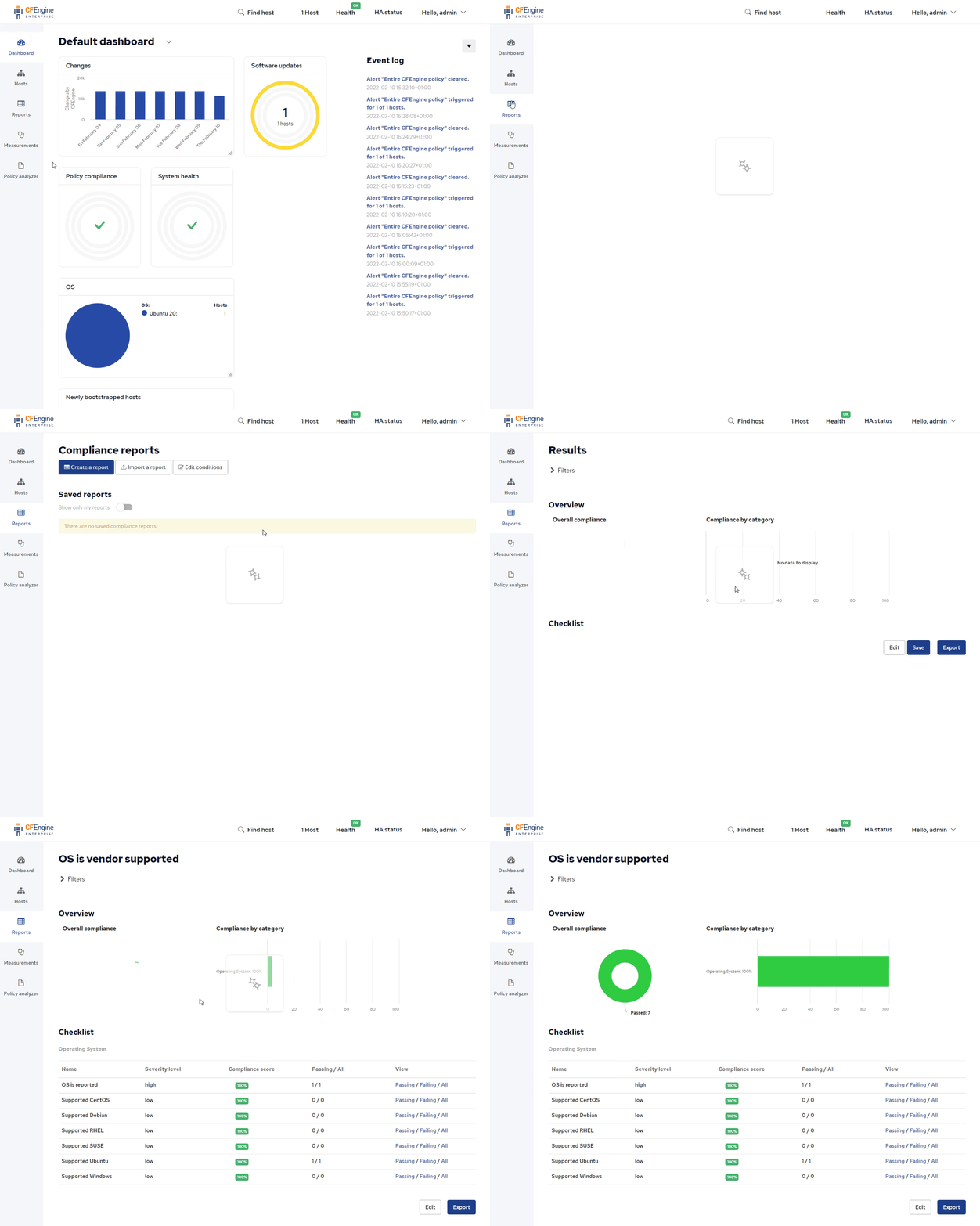
(It may take a few minutes before the report shows up).
What’s next
Now that you’ve successfully added modules and seen the results in Mission Portal, you’re ready to look for more modules, or explore Mission Portal further. Here are some examples of modules you might be interested in:
- Upgrade all packages with the system’s package manager (apt, yum, etc.)
- Run lynis security hardening tool and generate a compliance report from it
- Scan and report on potentially vulnerable log4j installations
To add more modules, just repeat the commands from steps 1-3.
For example, add the upgrade-all-packages module to your project:
cfbs add upgrade-all-packagesThen, as usual, build and deploy:
cfbs build && cf-remote deploy Chat
Chat Ask a question on Github
 Mailing list